PNG to WEBP
Select PNGs to convert
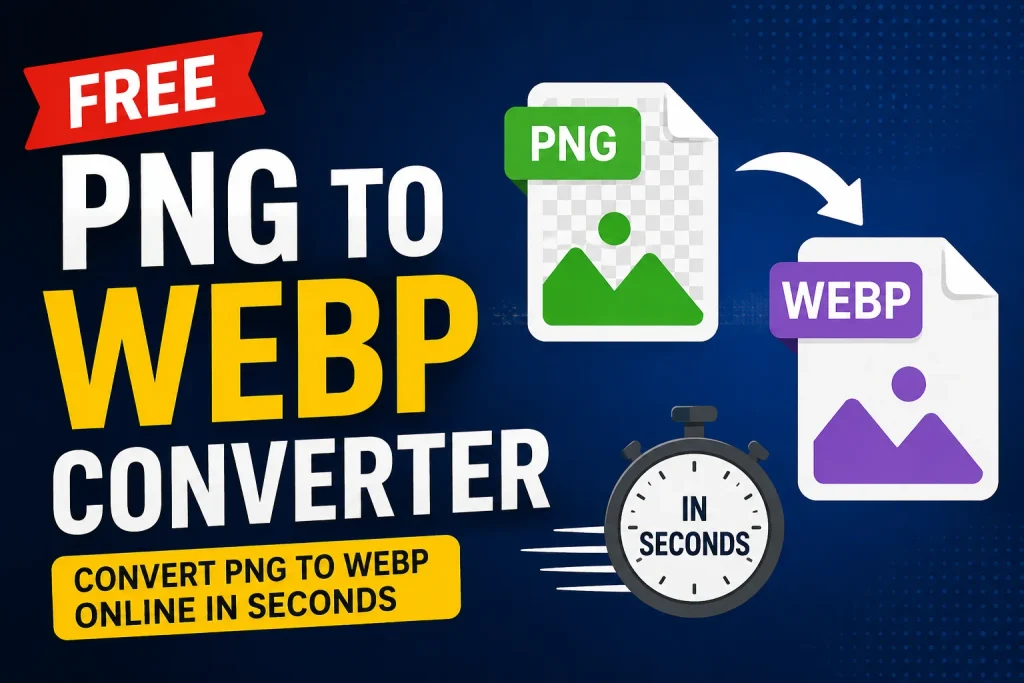
Free PNG to WEBP Converter – Convert PNG to WEBP Online in Seconds
If you are searching for a fast, free, and reliable PNG to WEBP converter, you have landed on the right tool. Our online converter lets you convert PNG to WEBP instantly, without installing any software, without watermarks, and without giving up image quality. Whether you’re a web developer, blogger, e-commerce store owner, or digital marketer, converting your images to WEBP is one of the simplest ways to make your website faster and more SEO-friendly.
In this guide, we’ll explain exactly why converting PNG to WEBP matters, how to use our tool, and how the WEBP format compares to PNG in real-world performance.
Why Convert PNG to WEBP?
PNG has been the go-to format for images with transparency and sharp graphics for decades. But PNG files are large often two to five times bigger than they need to be. That extra weight slows down your website, increases bandwidth costs, and hurts your Google PageSpeed and Core Web Vitals scores.
WEBP, developed by Google, solves this problem. When you convert PNG to WEBP, you typically get:
- 25–35% smaller file sizes compared to PNG, with no visible loss in quality
- Faster page load times, which directly improves user experience and SEO rankings
- Full transparency support, just like PNG, so your logos and icons still look perfect
- Lower hosting and CDN bandwidth costs, especially useful for image-heavy websites
- Better mobile performance, since smaller images load faster on slower connections
For anyone running a website today, using a png to webp converter isn’t just a nice-to-have it’s a core part of modern on-page SEO and technical optimization.
How to Use Our PNG to WEBP Converter Online
Our tool is built to make the png to webp converter online experience as simple as possible. Here’s how it works:
- Upload your PNG image drag and drop your file or click to browse from your device.
- Automatic conversion our tool instantly processes your image and converts it from PNG to WEBP format.
- Preview the result check the converted WEBP image and compare the file size reduction.
- Download your WEBP file save the compressed image directly to your device, ready to upload to your website, CMS, or online store.
There’s no need to install any software, sign up for an account, or pay a subscription fee. The entire image to webp converter process happens in your browser, which also means your images stay private and are never stored on our servers longer than necessary.
PNG vs WEBP: What’s the Real Difference?
Many users searching for png to webp conversion want to understand what actually changes when they switch formats. Here’s a simple comparison:
| Feature | PNG | WEBP |
|---|---|---|
| Average file size | Large | 25–35% smaller |
| Transparency support | Yes | Yes |
| Animation support | No | Yes |
| Browser support | Universal | Supported by all modern browsers |
| Best use case | Logos, icons, screenshots | Web images, e-commerce, blogs |
As you can see, WEBP keeps everything you liked about PNG including transparency while dramatically cutting down file size. This is exactly why so many websites are migrating from png webp formats to WEBP-first image strategies.
Who Should Use a PNG to WEBP Converter?
Web Developers and Designers
If you’re optimizing a website for speed, converting every PNG asset icons, banners, UI elements into WEBP format is one of the fastest wins you can make. Google’s PageSpeed Insights frequently flags “serve images in next-gen formats” as a warning, and WEBP is the direct fix.
Bloggers and Content Creators
Large featured images and screenshots in PNG format can seriously slow down a blog. Running your images through a convert png to webp tool before publishing helps your posts load faster, which keeps readers on the page longer and signals quality to search engines.
E-commerce Store Owners
Online stores often have hundreds or thousands of product images in PNG format. Multiply a few hundred KB per image by thousands of products, and you get a website that takes forever to load. Bulk converting product photos with a png to webp converter online tool can shave seconds off load times across your entire catalog.
Social Media and Marketing Teams
Smaller image files mean faster uploads, quicker previews, and better performance across ad platforms and content management systems that support WEBP.
Does Converting PNG to WEBP Reduce Image Quality?
This is one of the most common questions we get. The short answer: no, not noticeably. WEBP uses smarter compression algorithms than PNG, so it can shrink file size significantly while preserving visual quality that looks identical to the human eye. In most cases, you won’t be able to tell the difference between the original PNG and the converted WEBP file except that the WEBP version loads faster.
Is WEBP Good for SEO?
Yes. Page speed is a confirmed Google ranking factor, and images are usually the biggest contributor to page weight. By using a webp converter to shrink your images:
- Your Largest Contentful Paint (LCP) score improves
- Your overall page weight decreases
- Your site becomes more mobile-friendly
- You reduce the chance of Google flagging “unoptimized images” in Search Console
If you care about ranking higher in search results, converting your image library from PNG to WEBP should be part of your standard on-page SEO checklist right alongside optimizing title tags, meta descriptions, and alt text.
Tips for Using WEBP Images Correctly on Your Website
- Always add descriptive alt text to your WEBP images (e.g., “black leather office chair product photo” instead of “image1.webp”) to help with both accessibility and image SEO.
- Rename your files with keyword-relevant names before uploading, since search engines also read file names.
- Use responsive image tags (
srcset) so browsers load the right image size for each device. - Combine WEBP with lazy loading for images below the fold to further speed up initial page load.
- Keep a PNG fallback only if you support very old browsers for nearly all modern websites, this isn’t necessary anymore.
Frequently Asked Questions
Is this PNG to WEBP converter free?
Yes, our tool is completely free to use with no hidden limits on basic conversions.
Do I need to install any software?
No. Everything runs directly in your browser there’s nothing to download or install.
Will my transparent PNG stay transparent after converting to WEBP?
Yes, WEBP fully supports transparency, so logos and icons with transparent backgrounds will convert correctly.
Can I convert multiple PNG files to WEBP at once?
Our tool supports quick single and batch conversions, making it easy to process multiple images without repeating the process manually.
Understanding WEBP Compression: Lossy vs Lossless
When you run an image through our png to webp converter, it’s worth understanding what’s happening behind the scenes. WEBP supports two compression modes:
- Lossless WEBP every pixel from your original PNG is preserved exactly. This is ideal for logos, icons, text-heavy graphics, and any image where perfect accuracy matters. Even in lossless mode, WEBP still produces smaller files than PNG thanks to more efficient encoding.
- Lossy WEBP the format intelligently removes data that the human eye is unlikely to notice, similar to how JPEG works but with better results. This mode is best for photographs, banners, and background images where you want maximum file size savings.
Most general-purpose converters, including ours, default to settings that balance quality and compression automatically, so you don’t need to be a compression expert to get great results.
Also Check: How to Convert JPG to PDF? A Complete Step-by-Step Guide
How Much Storage and Bandwidth Can You Actually Save?
To put numbers into perspective: imagine an e-commerce store with 2,000 product images, each averaging 400KB in PNG format. That’s roughly 800MB of image data. Running those same images through a convert png to webp process, with an average 30% size reduction, would bring that total down to around 560MB a savings of 240MB across the catalog.
For a high-traffic store where product pages are loaded thousands of times per day, that reduction translates into real savings on CDN bandwidth costs and, more importantly, a noticeably faster shopping experience for customers which directly impacts conversion rates. Studies on page speed consistently show that even a one-second delay in load time can measurably reduce conversions, so image optimization isn’t just a technical nicety, it’s a business decision.
PNG to WEBP Conversion for Different Platforms
WordPress
If your site runs on WordPress, you can convert your existing media library images externally using a png to webp converter online tool and re-upload them, or use the converted files for new content going forward. Many modern WordPress themes and plugins already expect WEBP as the standard format for uploaded images.
Shopify and E-commerce Platforms
Product photography is often the heaviest part of an online store’s page weight. Converting your product images to WEBP before uploading them to your store platform can noticeably improve product page load speed, which matters both for SEO and for reducing cart abandonment caused by slow pages.
Custom-Built Websites
Developers building sites from scratch can integrate WEBP directly into their build pipeline, but for one-off conversions, quick edits, or non-technical team members, a browser-based webp converter remains the fastest option no build tools or command-line knowledge required.
A Quick Checklist Before You Convert
- Identify which images are contributing most to your page weight (large banners, hero images, and product photos are usually the biggest offenders)
- Convert PNG images that don’t strictly need lossless quality using standard or lossy WEBP settings
- Keep lossless WEBP for logos, icons, and graphics with fine text or sharp edges
- Rename files with descriptive, keyword-relevant names before uploading
- Add proper alt text to every converted image
- Test your site’s load time before and after to confirm the improvement
Start Converting PNG to WEBP Now
Whether you’re optimizing a single logo or an entire product catalog, our png to webp converter gives you a fast, free, and quality-preserving way to shrink your images and speed up your website. Upload your PNG file above and get your optimized WEBP image in seconds no software, no sign-up, no hassle.