How to Convert Word to PDF: The Complete Free Guide
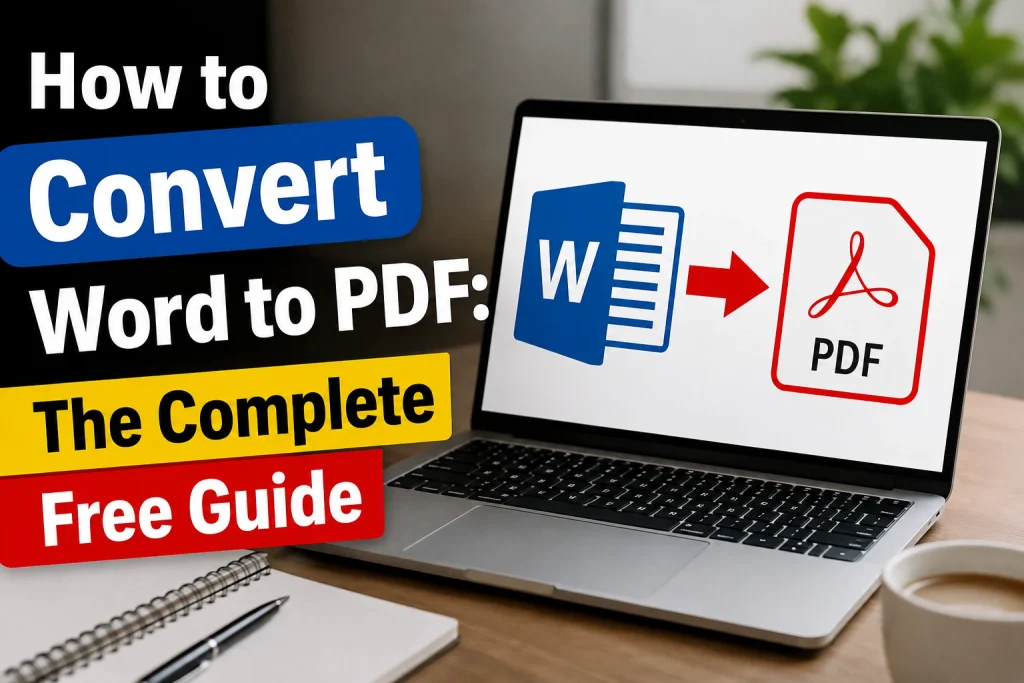
How to Convert Word to PDF The Complete Free Guide. Whether you’re sending a resume, a contract, or a school assignment, a Word document doesn’t always look the same on every device. Fonts shift, spacing breaks, and images move but a PDF looks identical everywhere. That’s why convert Word to PDF is one of the most searched tasks online, and thousands of people every day look for the best word to pdf converter, whether free or paid. The good news: you don’t need expensive software. This guide walks through every reliable way to convert Word to PDF online free, without losing formatting.
Why Convert Word to PDF in the First Place?
A .docx file depends on the fonts and settings installed on the reader’s computer. Open the same Word file on two different laptops and you’ll sometimes see two different layouts. A PDF freezes the page exactly as you designed it, which is why most companies require PDFs for:
- Job applications and resumes
- Signed contracts and legal documents
- Invoices and official business paperwork
- Reports, ebooks, and anything shared publicly online
PDFs are also smaller, harder to accidentally edit, and open on virtually any device phone, tablet, or desktop without needing Microsoft Word installed at all. That’s exactly why so many people search “word to pdf,” “word pdf converter,” and “how to convert word to pdf” every single day.
Method 1: Convert Word to PDF Using Microsoft Word (No Extra Software)
If you already have Microsoft Word, this is the fastest and most reliable way to convert Word to pdf documents and it works completely offline.
- Open your document in Microsoft Word.
- Click File, then choose Save As (or Export on some versions).
- Choose the location where you want to save the file.
- In the “Save as type” dropdown, select PDF (*.pdf).
- Click Save.
Word converts the file instantly and keeps your fonts, images, tables, and formatting exactly as they appear on screen. This works the same whether you’re converting a .doc to pdf or a docx to pdf converter style file, and it’s available on both Windows and Mac.
Method 2: Free Online Word to PDF Converters
Don’t have Microsoft Word installed? A free word to pdf converter is the quickest option, and it works from any browser Windows, Mac, Chromebook, or even a phone. Popular tools that people search by name include iLovePDF (also written as i love pdf convert word to pdf), Smallpdf, and various Adobe Word to pdf tools — but any reputable online Word to pdf converter free will do the job.
Most tools follow the same simple process:
- Go to the converter website of your choice.
- Upload your Word document (drag and drop, or select the file from your device).
- Wait a few seconds while the site converts the file.
- Download the finished PDF to your device.
A few things to check before you convert Word to pdf online:
- File size limits most free tiers cap uploads around 10–25 MB.
- Privacy avoid uploading sensitive contracts or ID documents to converters without a clear privacy policy.
- Formatting accuracy always open the downloaded PDF and check tables, headers, and images before sending it anywhere important.
- No installation needed great if you’re on a shared or work computer where you can’t install software.
These tools are ideal for a free convert word to pdf one-off job, but if you convert documents daily, the built-in Word or Google Docs method below will save you more time long-term.
Method 3: Convert Word to PDF for Free With Google Docs
If you have a free Google account, Google Docs offers a completely free way to change word to pdf without installing anything.
- Go to Google Drive and click New, then File upload, and select your Word document.
- Right-click the uploaded file and open it with Google Docs.
- Once it opens, click File, then Download, and choose PDF Document (.pdf).
This method is useful because it also lets you make quick edits to the document before converting it, all inside your browser — no downloads required.
Method 4: Convert Word to PDF on a Mac Using Preview
Mac users have a built-in trick that doesn’t even require opening Word:
- Open the Word document and choose File, then Print.
- In the print dialog box, click the PDF dropdown in the bottom-left corner.
- Select Save as PDF.
- Choose a file name and location, then click Save.
This works from almost any app on macOS, not just Word, making it one of the fastest hidden shortcuts to transfer word to pdf.
DOCX to PDF vs. DOC to PDF: Does the File Type Matter?
Older Word files use the .doc extension, while newer ones use .docx. Both convert doc to pdf or convert docx to pdf the same way, and every method above supports both formats. The only difference is that very old .doc files sometimes carry outdated fonts, which can shift slightly during conversion — so it’s always worth doing a quick visual check of the PDF after converting a legacy .doc file.
Common Formatting Problems (and How to Fix Them)
Occasionally a converted PDF doesn’t look quite right. Here’s how to fix the most common issues:
- Fonts look different: Embed fonts before converting (File > Options > Save > Embed fonts in the file, in Word) or install the missing font on your computer.
- Images are cut off or moved: Set images to “In Line with Text” rather than “Float” before converting.
- Tables break across pages awkwardly: Enable “Repeat Header Rows” and avoid tables wider than the page margins.
- File size is too large: Compress images inside Word first (Picture Format > Compress Pictures) before exporting to PDF.
Frequently Asked Questions
Is it free to convert Word to PDF?
Yes. Microsoft Word’s built-in Save As PDF feature is free for anyone with Word installed, and Google Docs offers a completely free alternative if you don’t have Word. Free online converters also handle it, usually with a file-size limit this covers most “word to pdf free” and “free pdf converter” searches.
How do I convert Word to PDF without losing formatting?
Use the built-in Save As PDF or Export option in Microsoft Word rather than a screenshot or print-to-image tool. This preserves fonts, spacing, and images exactly as designed. Always preview the PDF afterward to confirm nothing shifted.
Can I convert a PDF back to Word later?
Yes most of the same tools (Word, Google Docs, and online converters) also support PDF-to-Word conversion, though complex layouts may need minor manual cleanup afterward.
Do I need the internet to convert Word to PDF?
No. If you use Microsoft Word’s Save As PDF feature or a Mac’s Print > Save as PDF option, the conversion happens entirely offline — perfect for anyone searching “convert word to pdf converter online free” but wanting an offline backup too.
Final Thoughts
Converting Word to PDF takes less than a minute once you know where to look. If you already use Microsoft Word, stick with its built-in Save As PDF option it’s free, offline, and the most reliable for preserving formatting. If you’re on a device without Word, Google Docs or a free converter word to pdf tool will get the job done just as easily. Whichever method you choose, always open the final PDF once to confirm it looks exactly the way you intended before sharing it.